See the current picture
Review the latest reported internal capacity and the endpoint’s connection state.
USB CONTROL + DISK CAPACITY VISIBILITY
Bring endpoint protection and storage visibility into one place. Control USB storage access, review device health, and see how much internal disk space is used or available—so your IT team can act with context.
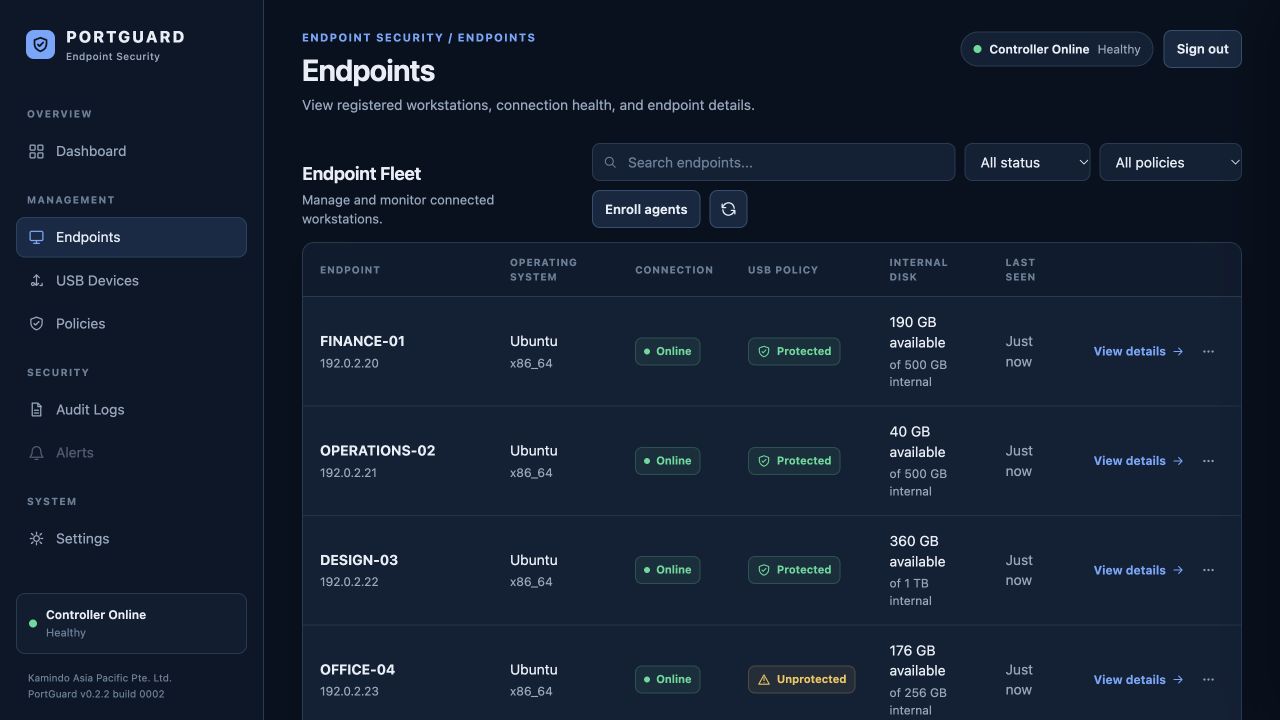
THE PORTGUARD PLATFORM
A USB access decision and a nearly full workstation disk can both interrupt a working day. PortGuard puts these operational concerns in one Console: who is connected, which endpoints have USB storage protection, and how much internal disk space they report.
For IT teams, that means a clearer starting point for investigation. For managers, it means better context for storage purchasing and maintenance conversations. Review the evidence first, then decide where your team should act.
See how PortGuard supports a DLP program →CAPACITY MANAGEMENT STARTS WITH VISIBILITY
See total capacity, used space and available space for reported internal volumes. Compare endpoints before scheduling cleanup, moving business data or budgeting for a larger drive. Your team carries out the maintenance; PortGuard supplies the capacity context.
A workstation with 40 GB available needs a different conversation from one with 360 GB available. Reading capacity alongside the endpoint name, connection state and report time helps IT decide which device to check first.
Open an endpoint to inspect its reported volumes, filesystem, mount location and capacity breakdown. This gives the support team useful detail without needing the user to read disk figures over the phone.
See capacity in the Console →460 GB used · Review this endpoint first
310 GB used · Assess upcoming workload
640 GB used · More space available today
Example data and suggested review priorities. This illustration is not an automated alert or a capacity forecast.
Review the latest reported internal capacity and the endpoint’s connection state.
Use remaining space and business needs to choose which workstation to investigate.
Plan maintenance or a storage upgrade with device-level evidence in hand.
Filesystem capacity on local, mounted internal volumes: total bytes, used bytes and space available to normal applications. USB drives, network shares and unmounted partitions are outside this capacity view. Available space can be lower than total minus used because the filesystem may reserve space.
Reports are periodic snapshots, with their collection time shown in Console. An offline endpoint can retain its last report; it should not be treated as a live measurement. Missing or unsupported measurements are identified rather than presented as a zero-capacity disk. Supported shared storage pools are counted once.
Capacity collection is available through Linux, Windows and macOS Agent releases, subject to each platform's release channel. Compatible Console builds provide the report, thresholds, optional SMTP email and CSV export. Capacity visibility is read-only and does not automatically clean files, resize disks or predict future usage.
INSIDE PORTGUARD
Explore actual Console screens, from fleet visibility to disk capacity and administrative history. Select an image for a larger view.
Console 0.2.2 build 0002 · Screens captured with illustrative Linux endpoint data. Names, addresses and activity are examples.
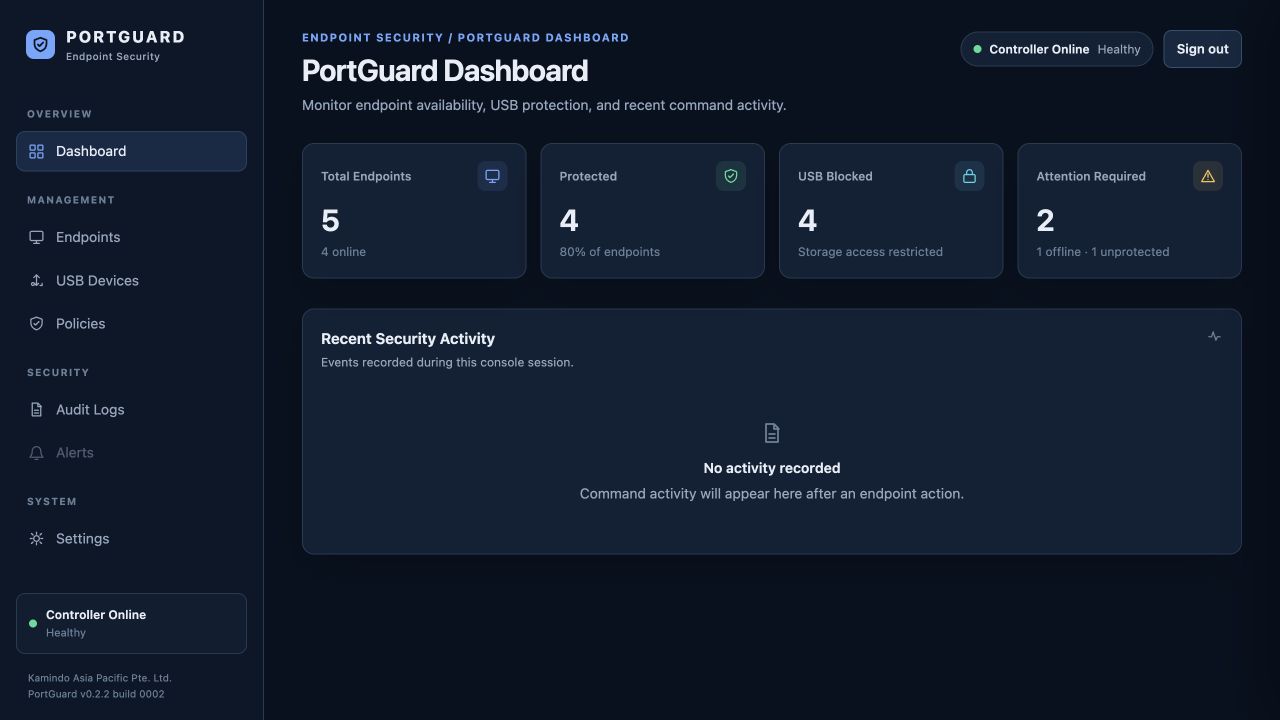
Review endpoint availability and USB protection at a glance. Use the summary to decide where to investigate next.
See connection status, USB policy and available internal disk space together. Open a device for more detail.
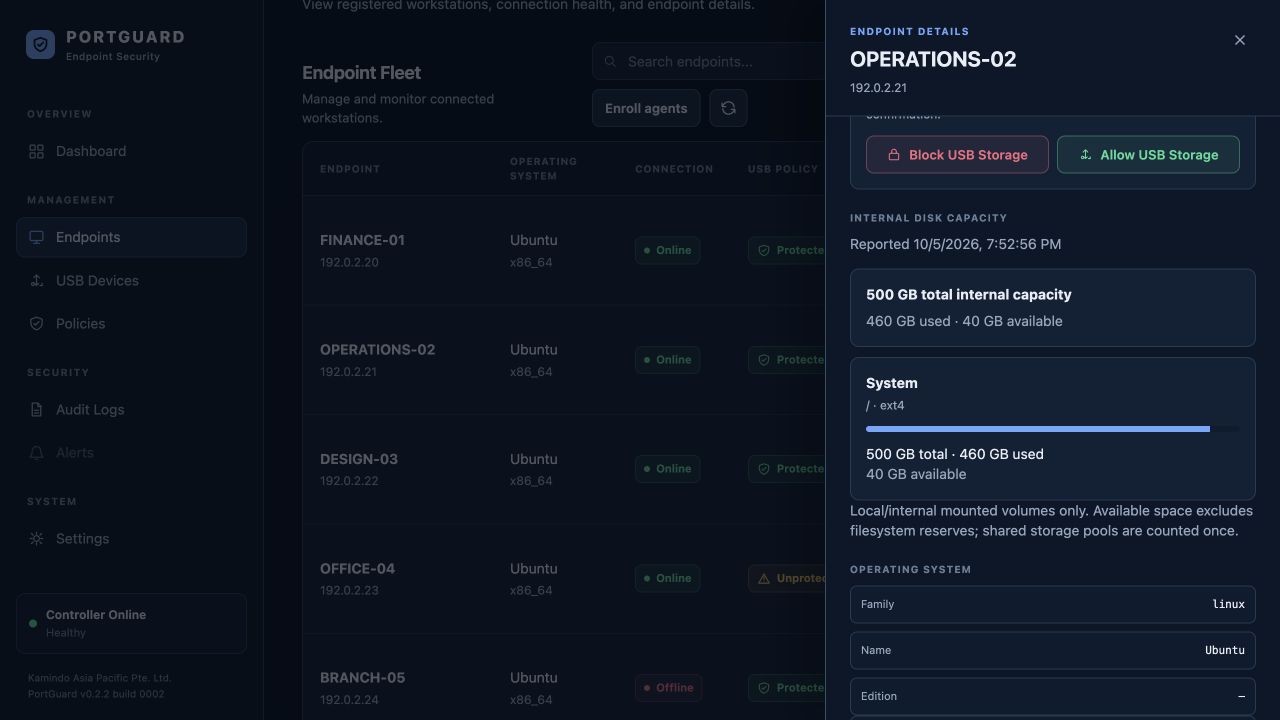
Inspect total, used and available space, including the volume mount and report time. Ground your maintenance plan in a current measurement.
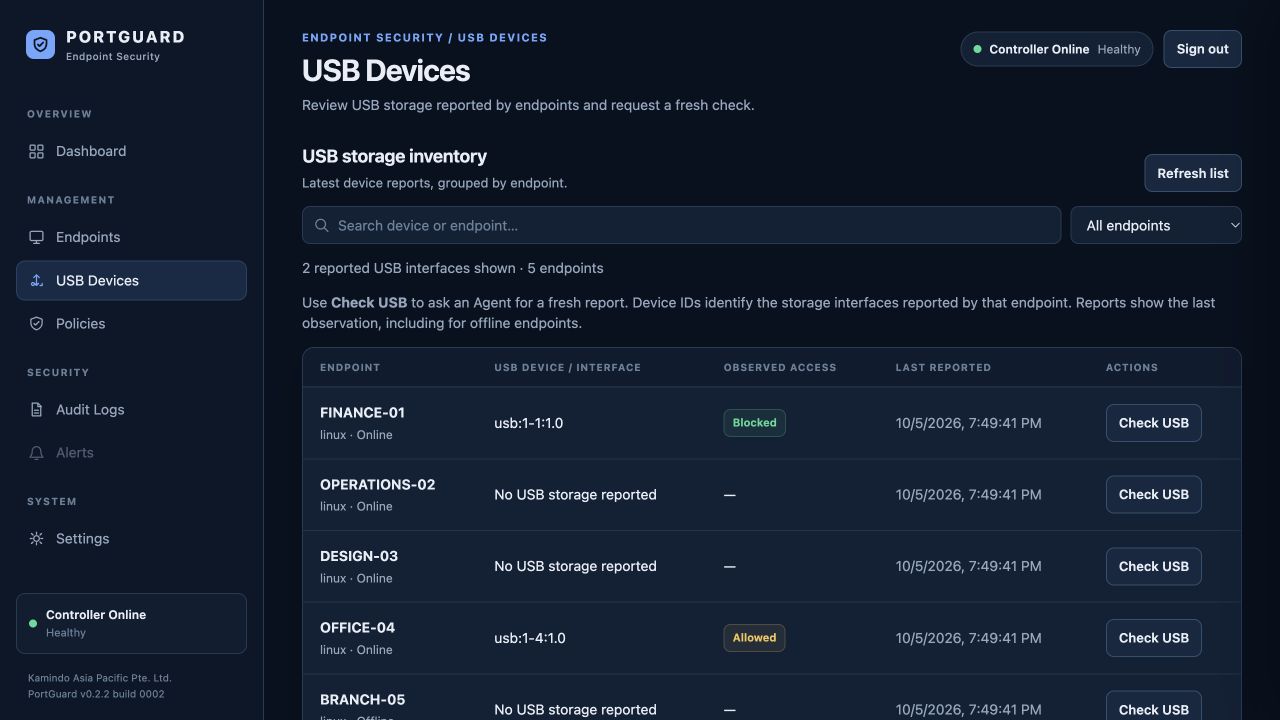
Review the latest USB storage observations by endpoint and request a fresh check when needed.
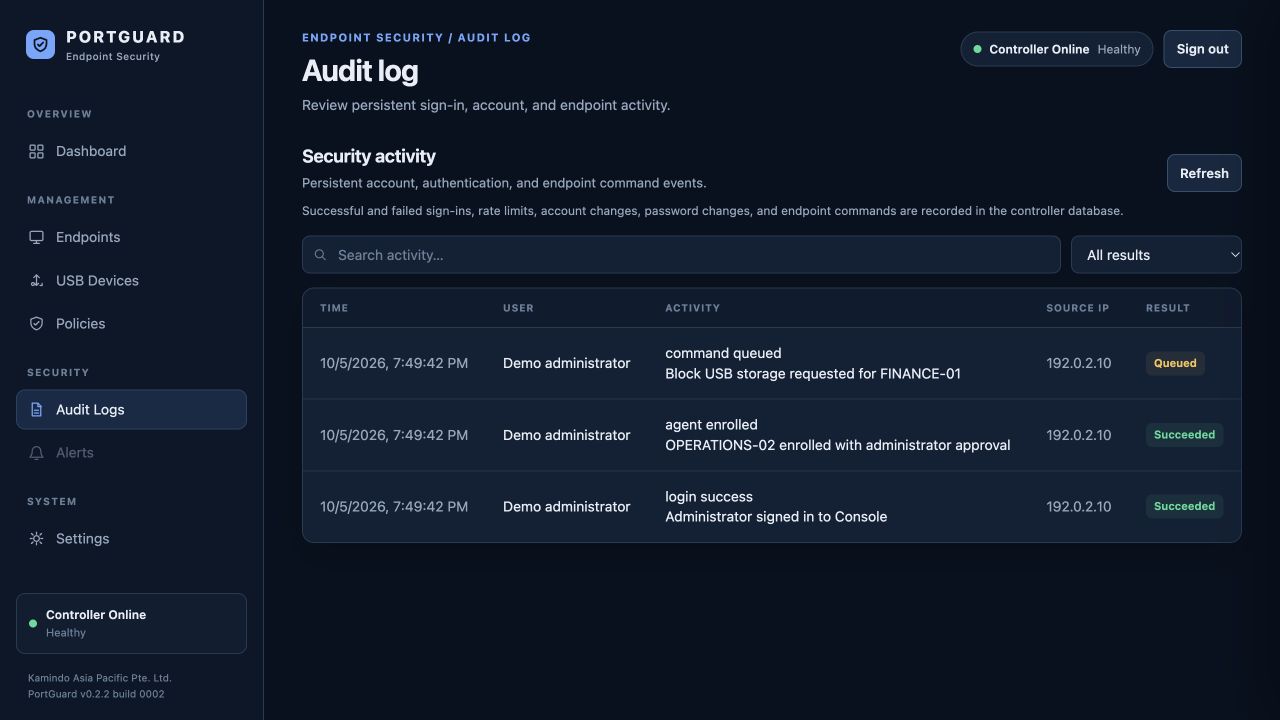
Review sign-ins, enrollment and endpoint command events. Search the audit history when investigating an action.
WALK THROUGH YOUR USE CASE
See how USB control and capacity visibility fit your environment, operating systems and support workflow.
Request a guided demo →Check Agent availability →PRACTICAL DEVICE CONTROL
Apply clear USB storage controls, understand endpoint state and internal capacity, and keep a record of administrative actions.
01 / ENDPOINT VISIBILITY
Review enrolled endpoints, online or offline state, last check-in, Agent version, internal disk capacity, and reported operating system from one console.
02 / STORAGE CONTROL
Send a remote Block or Allow command for USB storage to an enrolled endpoint. Review whether it completed, failed, or is waiting for the device to reconnect.
03 / ACCOUNTABILITY
Use role-based administrative access and centralized activity logs to support internal review and security operations.
BUILT FOR MIXED ENDPOINT FLEETS
Bring different operating systems into one on-premises view. Each Agent checks in with the Console, so teams can see endpoint status and manage supported controls from a familiar place.
Central endpoint check-in and USB storage controls.
Agent packages for x86-64 and ARM64 systems.
Agent packages for Apple Silicon and Intel Macs.
Linux has a Stable Agent release; the newest Linux, Windows and macOS packages are available in Testing. Feature availability and device controls vary by operating system and release. Check current Agent requirements and status →
CENTRAL LOGGING · CONSOLE TESTING
Forward Console security and administrative events, alerts, and Agent activity received by the Console to your central syslog receiver. Bring endpoint events into the monitoring tools your team already uses.
A sent status confirms the transport write, not that a receiving platform indexed the event. This feature is currently in Console Testing build 0008 for Linux x86-64 and Raspberry Pi. The current Windows and macOS Console packages do not include it yet.
Illustrative RFC 5424 envelope; process ID, timestamp and event values are samples.
SECURITY & DATA LOSS PREVENTION
USB storage is one path information can take out of an organization. PortGuard helps make that path visible and manageable.
Apply USB storage Block or Allow actions remotely, with endpoint state to help administrators understand where controls can be applied.
Review the endpoint and its reported storage state before granting access. Authorized administrators can send Allow when access is needed and restore Block afterward.
Centralized policy management, administrative roles, endpoint status, and activity logs help teams review how device controls are managed.
Focused by design. PortGuard controls USB storage access. It is not a content inspection engine and does not inspect files or control every data transfer channel. Use it as one layer within a broader information security and DLP program.
DEPLOYMENT MODEL
PortGuard Server/Console is installed on-premises in your environment. Agents run on managed endpoints and communicate with your Console. See the installation guide for available Agent packages.
Connect endpoints across networks. Agents initiate outbound check-ins and retrieve queued commands from your PortGuard Server. This supports endpoints on different networks, including NAT environments, without requiring a direct inbound connection to each endpoint. Each endpoint still needs network access to the Server.
TECHNICAL, MADE PRACTICAL
The endpoint Agent reports its connection health, supported USB state and internal disk capacity.
Your on-premises Console displays reports and queues supported USB control commands.
Review the evidence, authorize USB access and plan storage maintenance through your IT process.
Agents initiate connections to a reachable Console. USB commands return through Agent polling; administrators do not need an inbound connection to every endpoint. HTTP deployments are not encrypted—plan network access and transport protection for your environment.
PORTGUARD PRODUCT PORTAL
Explore USB storage controls and internal disk capacity in a walkthrough built around your endpoint environment.